Forms help forms
When you create a form, it may not immediately clear to everyone what you mean by the questions. Or what the form is intended at all. It therefore makes sense to help users on their way with different techniques. In this article we explain what you can do.
Field labels
Every field has a label and it is important in the first place that this label is clear. For this you can do a number of things:
-
Avoid long titles. Long titles are generally poorly read and create confusion.
-
Be consistent in your terminology. If something is first called an “Asset”, do not call it a “Middle” later. This also causes more confusion.
-
Turn the label into a question. A question like “Has business information leaked?” is more understandable than “data breach”.
These points are the most important to apply because if this is clear, the following points are not necessary.
Placeholders
If the above is insufficient, you can also help people on their way by giving them a hint of what they can fill in. You can do this through placeholders. For example, when editing a fillable field (under Values) you can provide a placeholder:
The user then sees this as follows:
Field of help
If the above is still insufficient (for example, because explanation may be required), you can also add additional information to the field. You can do this by editing the field and in the tab Other enter help text:
The user then sees this as follows:
Form help
If the above points are not yet sufficient or the purpose of the form is not understood, it is also possible to provide the form itself with help text. You can do this by clicking on the gear at the top right in the editor so that you get to the settings of the form. Here you click on Advanced and then on Edit help text:
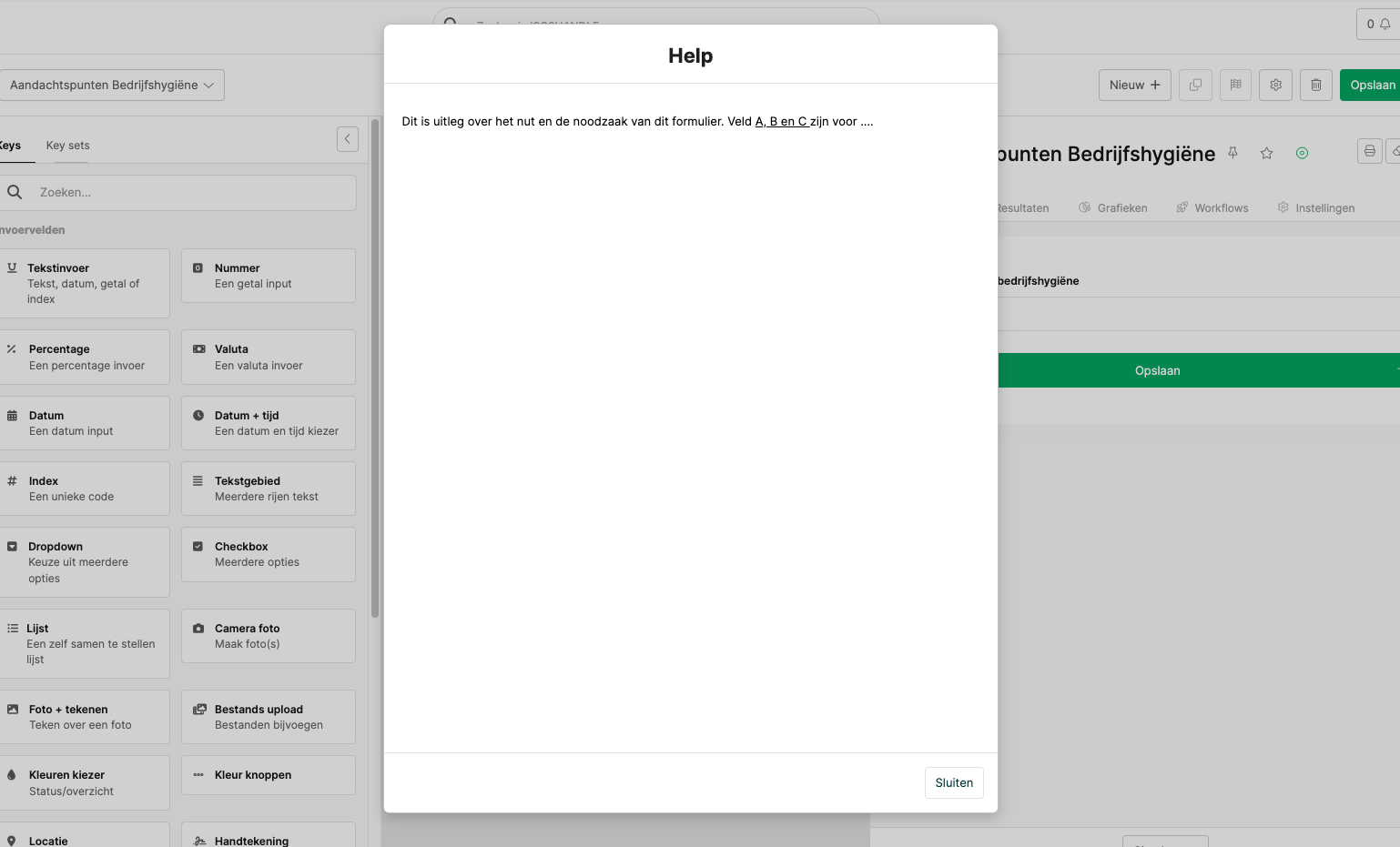
You will then see a popup in which you can unsubscribe your help text. You can also use all kinds of layout:
The user will then see a help button in the fill tab. As soon as he presses on this, your help text will appear: