Print registrations
Forms are used for all kinds of purposes. For example, forms are used to register complaints, run inspection rounds, store assets or keep a personnel register. The reasons why you would like to print a registration are very different. How to do this is explained in this article.
Print a registration
When you open a registration you have the option to print it above right:
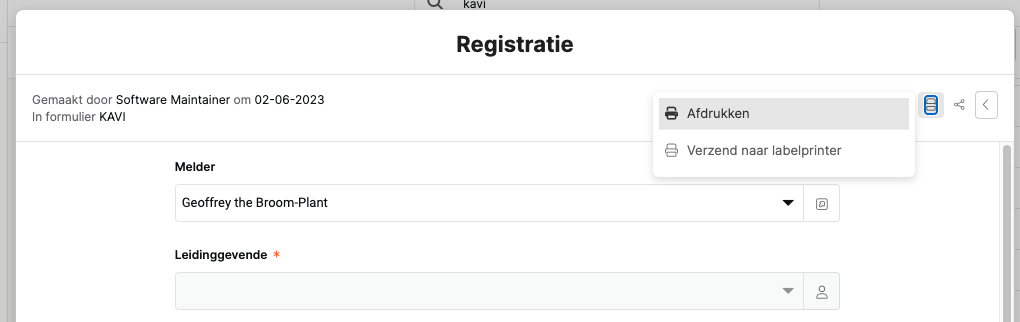
When you do this, you get a popup in which you can configure a number of things:
You have the following options:
- Do you want to print underlying registrations? This will determine whether youIntegrated form(for example, tasks) that hang under this registration.
- Do you also want to print title fields? Your form canTitle fieldsContaining. And if so, then they can be printed as field group titles.
- Do you want to print empty fields? Your registration may contain fields that are empty. These can be skipped when you print.
- Which fields do you want to print? If you do not check anything here, then simply all the fields will come along (standard). But if you only want to print certain fields, you can do so with this.
Once you have made your choices, click onPrintand opens a new page that can be printed:
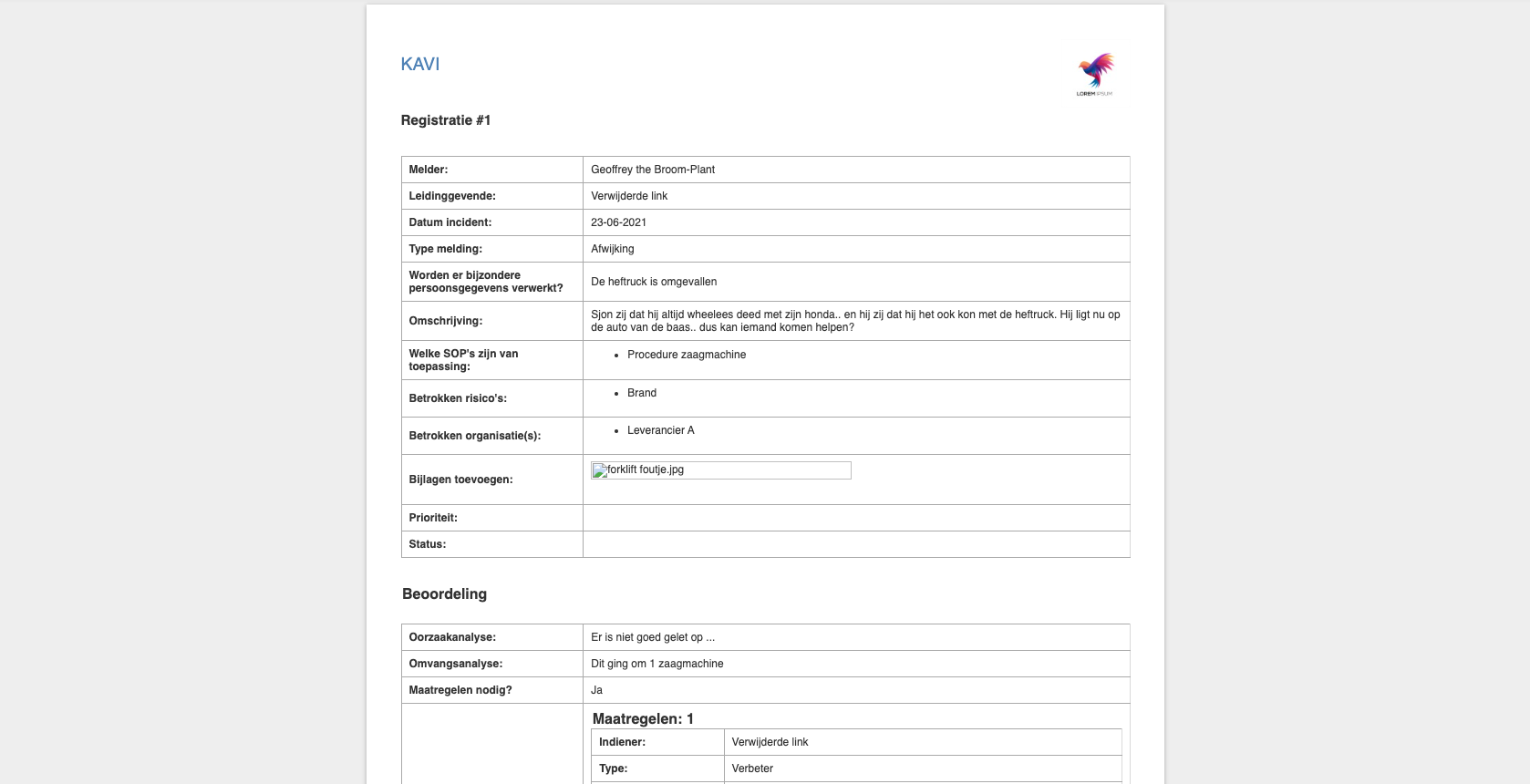
The settings you set for printing will also be remembered for your next print.